Almhof Café — logo for an alpine café
Eco-minimalism and alpine aesthetics in a mark that had to work on a façade and on a takeaway cup.
- logo
- branding
- hospitality
View the project
How to get an extruded shadow for text in Illustrator — a walkthrough of the 3D panel and the materials.

How do you get text with an extruded shadow? I walk through it step by step — everything is done with the standard features of Illustrator, without plug-ins and render farms.
Illustrator thinks for a moment — and creates that very shadow effect. After that you can type any text: it will look three-dimensional.
I published a short video in Shorts format with my own voice-over — the YouTube channel has been without updates for a long time, and this format is just right to bring it back to life.
Eco-minimalism and alpine aesthetics in a mark that had to work on a façade and on a takeaway cup.
View the project
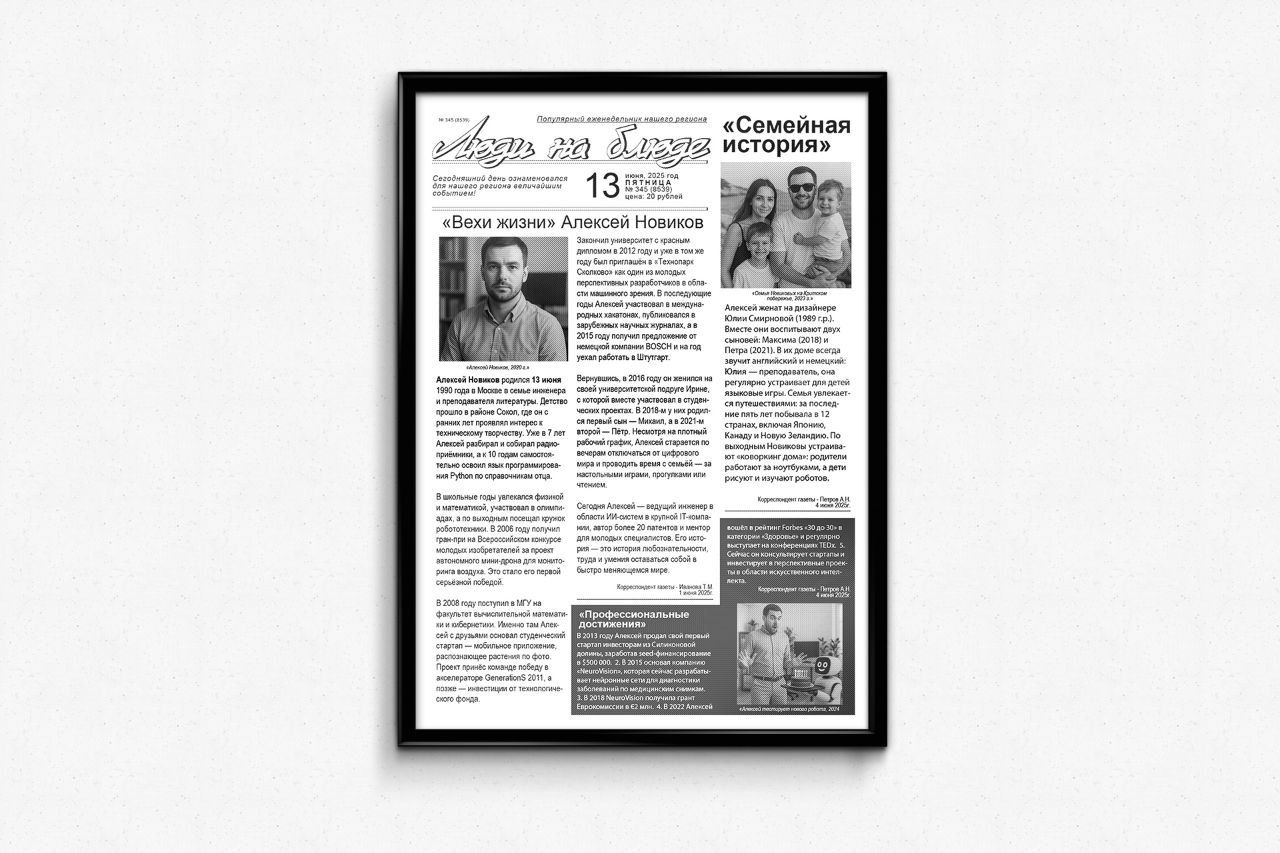
What a printed birthday greeting looks like when every column is about the person celebrating."
View the project
A logo that had to look equally at home on a bouquet sticker and on a shopfront sign.
View the project
On air